Developer Guide
This guide provides information for developers who want to contribute to Terminal Agent.
Development Environment Setup
Prerequisites
Before you begin, ensure you have the following installed:
- Go - Terminal Agent is written in Go (1.20+ recommended)
- Official Go Installation Guide
-
Verify installation with:
go version -
Taskfile - Used instead of Makefile for running tasks
- Taskfile Installation Guide
-
Verify installation with:
task --version -
Docker - Required for running integration tests
- Docker Installation Guide
- Verify installation with:
docker --version
Setting Up the Repository
-
Clone the repository
-
Install dependencies
-
Build the project
-
Run tests
Development Workflow
Common Tasks
Terminal Agent uses Taskfile for managing development tasks. Here are some common commands:
# Build the project
task build

# Install to your PATH
task install

# Install the Git pre-commit hook
task install:pre-commit
# or, on distros that package the binary under a different name
go-task install:pre-commit

# Run unit tests
task test

# Run integration tests
task test:integ

# Run the agent with a question
task run:ask -- "What is a file descriptor?"

# Run the agent with a task
task run:task -- "List files in current directory"

# Set environment for different providers
task run:set:openai
task run:set:anthropic
task run:set:bedrock
task run:set:google
To see all available tasks:
The pre-commit installer copies the repository-tracked hook from .githooks/pre-commit into Git's active hooks directory, so rerun task install:pre-commit or go-task install:pre-commit after pulling hook changes. The installed hook will use task or go-task, whichever is available.
Project Structure
terminal-agent/
├── cmd/                      # Command-line applications
│   └── agent/                # Main agent application
├── internal/                 # Private application and library code
│   ├── agent/                # Agent implementation
│   ├── commands/             # CLI command implementations
│   ├── config/               # Configuration handling
│   ├── connector/            # LLM provider connectors
│   ├── history/              # History logging and retrieval
│   ├── tools/                # Tool implementations
│   └── utils/                # Utility functions
├── docs/                     # Documentation
├── tests/                    # Test files
└── Taskfile.dist.yaml        # Development tasks
For diagrams of how these components connect and how the event-driven ask/chat/task workflows operate, see the Architecture page.
Docker Environment
For integration testing and consistent development environments, Terminal Agent uses Docker:
# Build the test environment
task env:build

# Setup the test environment
task env:setup

# Access the test environment
task env:access

# Run tests in the environment
task env:test
Adding LLM Provider Support
To add support for a new LLM provider:
- Create a new connector file in
internal/connector/ - Implement the
LLMConnectorinterface - Update the
NewConnectorfactory function to include your provider - Add appropriate configuration options
Adding New Tools
To add a new tool:
- Create a new tool implementation in
internal/tools/ - Implement the
Toolinterface - Update the
ToolProviderto return your new tool - Add documentation for your tool
Tools that run long-lived processes or produce incremental output should also support tools.ToolExecutionContext.Output when they implement ContextualTool or ContextAwareTool. Write live user-facing chunks to Output as they become available, but still return the captured final result from RunSchema* so the task agent can reason over it. If the output sink implements tools.ProcessesStartedWriter, call ProcessStarted(pid) after the process starts so task events can include the process id in output and warning events.
Documentation
Documentation is written in Markdown and stored in the docs/ directory. To update the documentation:
- Edit the relevant Markdown files
- If adding new pages, update the navigation in
docs/Readme.md
GUI Architecture
The desktop popup (cmd/agent-gui) is a Fyne application
under internal/gui/. End-user behavior is documented in the
Graphical UI guide; this section is for contributors working on the GUI
itself.
Shared service layer
The GUI does not talk to connectors or prompt helpers directly. Like the CLI
commands, it depends on the shared internal/app service interface (AskEvents,
TaskEvents, etc.). Both surfaces consume the same event-driven API, so a change
in internal/app is a cross-surface change even when it looks CLI-only. See the
Architecture page for the event model.
Layout and key files
| Concern | File(s) |
|---|---|
| Entry point, single-instance IPC, voice/version wiring | cmd/agent-gui/main.go |
| App lifecycle, show/hide, tray menu, indicator ticker | internal/gui/app.go |
| Window construction, layout, shortcuts | internal/gui/main_window.go |
| Submit / cancel / copy / export actions | internal/gui/actions.go |
| Ask/Task event consumption (presenter) | internal/gui/presenter.go, internal/gui/task.go |
| Per-mode view state and persistence | internal/gui/state.go |
| Live tool-output truncation | internal/gui/livelimit.go |
| Task transcript model and rendering | internal/gui/transcript.go, internal/gui/transcript_view.go |
| Clarification/confirmation dialogs | internal/gui/interaction.go |
| Settings dialog, provider autocomplete, status icon | internal/gui/settings_dialog.go, internal/gui/provider_entry.go, internal/gui/provider_status_icon.go |
| Voice controller integration | internal/gui/voice.go |
| History tab and detail modal | internal/gui/history.go |
| Brand theme and icons | internal/gui/theme.go, internal/gui/icons.go |
Notes for contributors:
- Service events are drained on the Fyne UI thread via
fyne.Do. Ask mode re-renders on each delta; Task mode sets a dirty flag that a ~140ms ticker inapp.goflushes, so streamed tool output is coalesced rather than rendered per chunk. state.gosnapshots each mode's view on switch, so moving between Ask, Task, and History does not discard the previous run.- GUI Task runs with
AutoApprovetoday;taskAutoApprove()inapp.gois the single switch, andEventConfirmationNeededis handled only as a deadlock backstop until interactive approval lands.EventClarificationNeededalready drives a real modal throughinteraction.go. - Closing the window calls
Hide()(close intercept), not quit.
Building and running
# Build just the GUI binary
task build:gui

# Run the popup from source
task run:gui

# Install desktop-build dependencies for your platform
task deps:gui:macos    # or deps:gui:ubuntu / deps:gui:fedora
Fyne requires platform C toolchains/headers: Xcode Command Line Tools on macOS,
and X11/OpenGL dev packages on Linux (installed by the deps:gui:* tasks). The
integration:* tasks additionally install agent-gui, register a desktop entry,
and wire the Ctrl+Shift+Space shortcut; see the
Integration guides.
GUI Screenshots
The Graphical UI is rendered to PNG files without a display server or a live LLM provider, so the images below can be regenerated deterministically to reflect the current look. They double as documentation, PR illustrations, and quick visual checks of GUI changes.
Current look
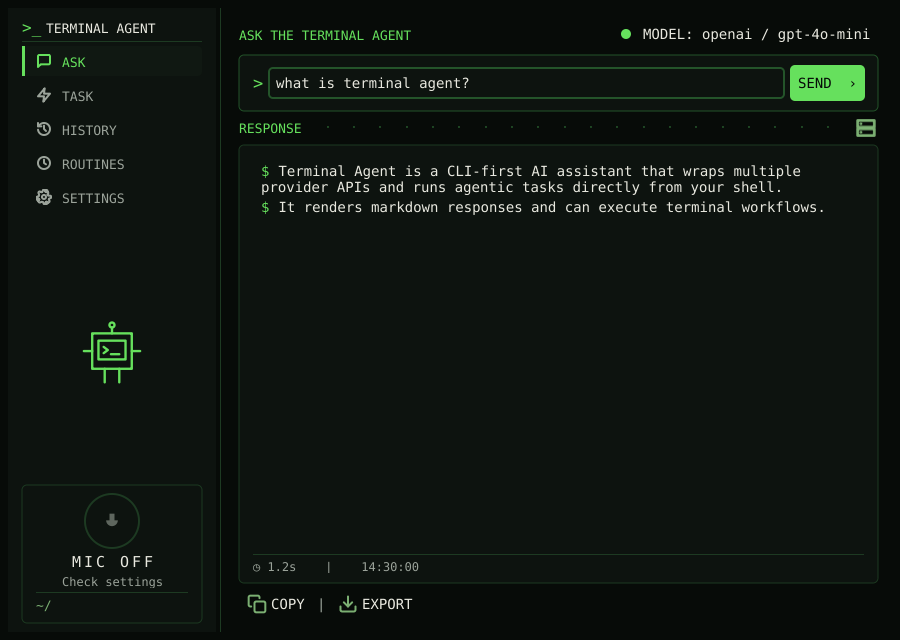
Ask mode — a question and its rendered markdown answer:
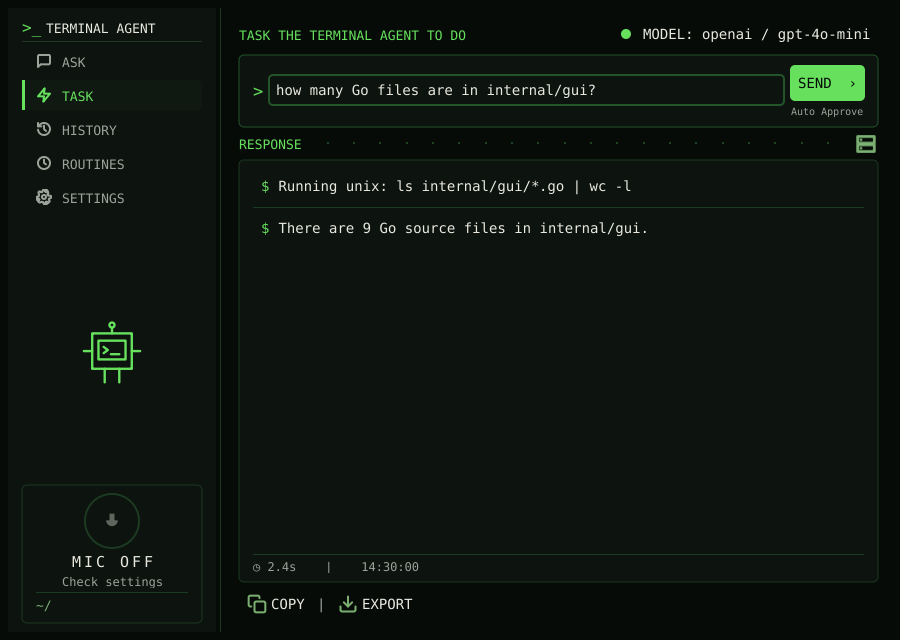
Task mode — an agentic run, showing the tool-call transcript and final answer:
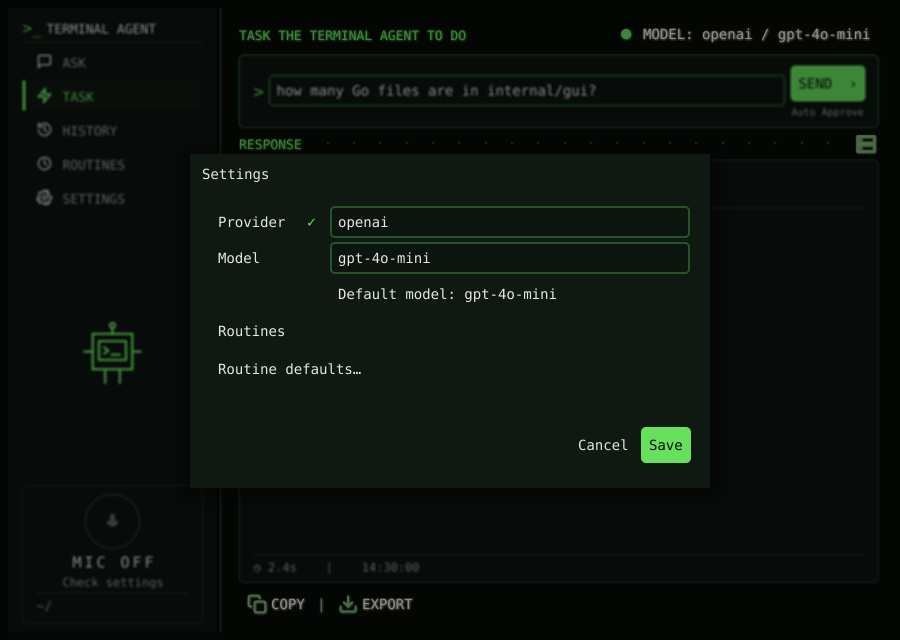
Settings — the provider/model dialog:
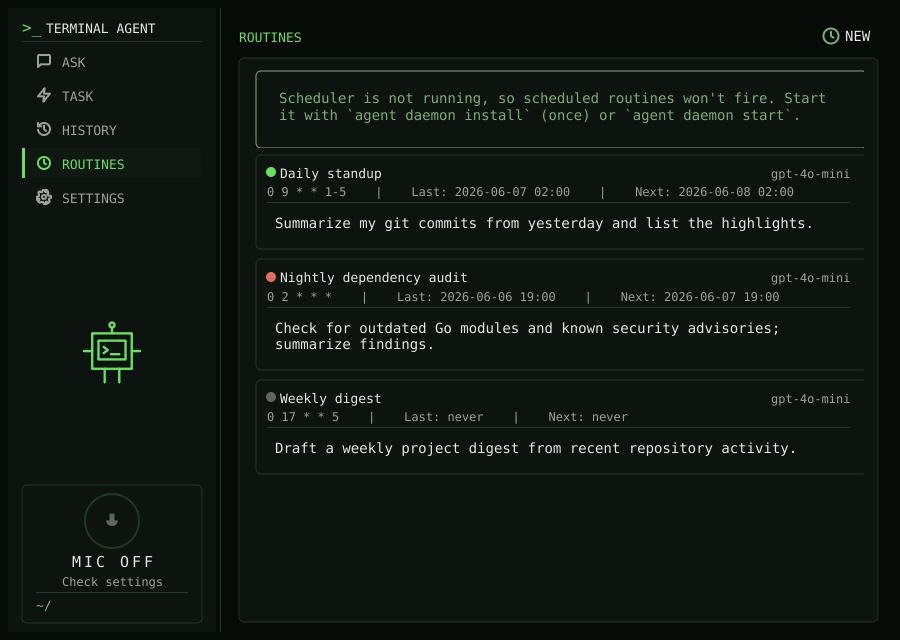
Routine — the list of scheduled routines with their status, schedule, and next run:
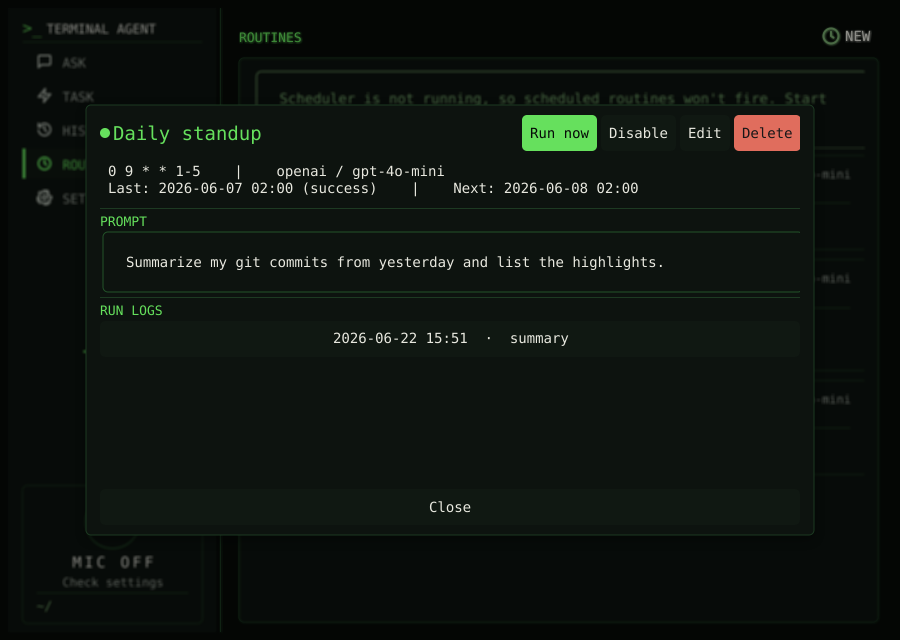
Routine detail — a routine's prompt, settings, run logs, and actions:
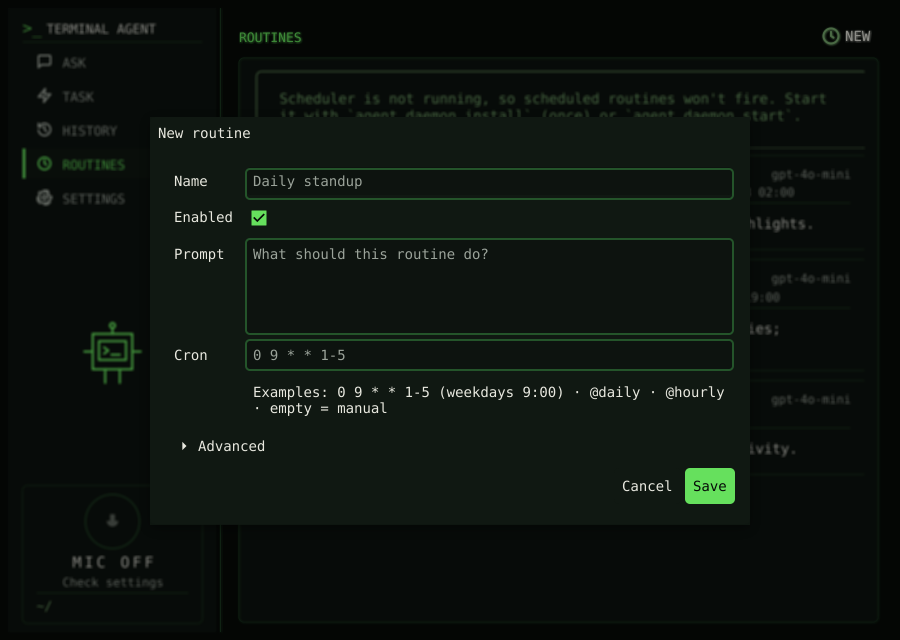
Routine form — creating or editing a routine:
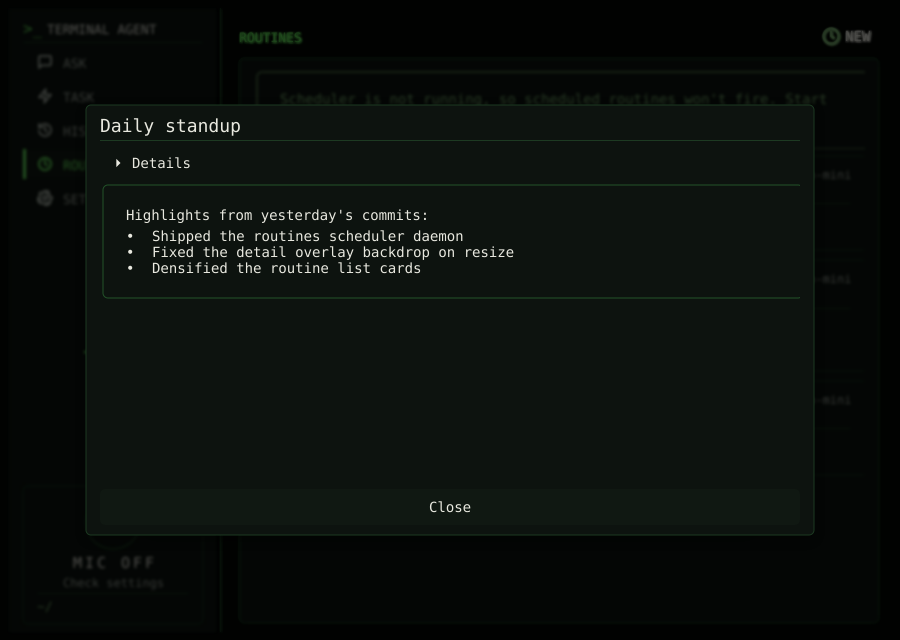
Routine log — a run summary rendered as markdown, with collapsed run metadata and highlighted output:
Regenerating the screenshots
# Re-renders the images into docs/assets/screenshots/ (committed doc assets)
task screenshots:gui

# Or choose a different output directory (must be an ABSOLUTE path)
task screenshots:gui OUT=/tmp/ta-shots
The committed files are:
File (docs/assets/screenshots/) |
State |
|---|---|
gui-ask.png |
Ask mode with a rendered markdown response |
gui-task.png |
Task mode transcript (tool-call line + final answer) |
gui-settings.png |
Settings dialog (provider/model) |
gui-routine.png |
Routine list (status, schedule, model, last/next run) |
gui-routine-detail.png |
Routine detail (prompt, settings, run logs, actions) |
gui-routine-form.png |
Routine create/edit form |
How it works
The task runs a single env-gated test, TestCaptureScreenshots in
internal/gui/screenshot_test.go. The test:
- Builds the real
gui.Appwith a Fyne test app (test.NewApp()), so the actual widgets, layout, and brand theme are exercised. - Drives
App/stateinto each scenario (mode, input text, output, the Settings dialog, or the Routine list/detail/form) and callsrender(). For the Routine views it redirects the routine stores to a temp dir and seeds representative routines so the captures are deterministic and never touch real user data. - Captures the window with
win.Canvas().Capture()(Fyne's software renderer) and writes the image withpng.Encode.
The test is skipped during normal runs (task test) and only executes when the
GUI_SCREENSHOTS environment variable points at an output directory. The
Taskfile sets that variable to docs/assets/screenshots for you.
Important:
GUI_SCREENSHOTSmust be an absolute path.go testruns in the package directory, so a relative path would write intointernal/gui/instead of the repo root. Thetask screenshots:guiwrapper always passes an absolute path.
Adding or changing a captured state
Edit TestCaptureScreenshots: set the desired App/state fields (or show a
dialog), call g.render(), then call the local capture("gui-name.png")
helper. Use stable, descriptive gui-* names since the files are referenced by
name from the docs above.
Known limitation: fenced code blocks
The pinned Fyne fork's software rasterizer crashes when drawing the brand
theme's fenced code blocks (a zero-stroke rounded-rectangle underflow), so the
captured states deliberately avoid ``` code fences. At runtime the Task
transcript wraps live tool stdout/stderr in a fenced block; that styling renders
correctly under the real GL renderer but cannot be captured headlessly.
gui-task.png therefore shows the transcript without the fenced live-output
box.
To capture the true fenced rendering, run the real binary and screenshot the window with your OS tools:
Building for Release
To build for release:
This creates optimized binaries for multiple platforms in the release/ directory.
Code Style and Conventions
- Follow standard Go code style and conventions
- Use
go fmtto format code - Use
golintandgolangci-lintfor linting - Write tests for new functionality
- Document public functions and types
Pull Request Process
- Fork the repository
- Create a feature branch
- Make your changes
- Add/update tests as necessary
- Ensure all tests pass
- Update documentation if needed
- Submit a pull request
Debugging
For debugging, use the --loglevel debug flag:
Continuous Integration
The project uses GitHub Actions for continuous integration. When you submit a pull request, the CI system will automatically:
- Build the project
- Run unit tests
- Run integration tests
- Check code formatting
Ensure that all CI checks pass before your pull request can be merged.
F.A.Q.
My new GUI input field shows no text cursor when focused
Issue: A newly added text input in internal/gui (a widget.Entry or a
widget extending it) accepts focus and typing, but no blinking text cursor is
visible in the field.
Reason: The brand theme deliberately returns 0 for
theme.SizeNameInputBorder (see brandTheme.Size in internal/gui/theme.go)
so entries draw no border box of their own and blend into the surrounding
panel. Fyne's Entry renderer, however, reuses that same theme size as the
width of the text cursor (r.cursor.Resize(fyne.NewSize(inputBorder,
lineHeight)) in the toolkit's widget/entry.go). With the input border
zeroed, the cursor is rendered zero pixels wide: it exists and blinks, but is
invisible.
Solution: Wrap every text input in withNativeCursor(...) (defined next to
the theme in internal/gui/theme.go) when placing it in a layout. The helper
applies a container.NewThemeOverride with promptEntryTheme, which restores
SizeNameInputBorder to promptNativeCursorWidth for that widget subtree
only, so the cursor becomes visible while the rest of the UI keeps its
borderless look. The prompt input, the Settings provider/model fields, the
Routine form fields, and the Task Memory search field all go through this
helper; a plain widget.NewEntry() added straight into a container will
reproduce the bug.
The window grows wider when switching to a GUI tab
Issue: Opening a browse tab (History, Task Memory) resizes the whole window wider than it originally was.
Reason: canvas.Text cannot wrap or truncate, so it reports the full
rendered string width as its minimum size. A vertical-only scroll
(container.NewVScroll) adopts its content's minimum width, so a single long
card line — for example a meta line combining a provider, a long model name,
and a working directory — raises the minimum width of the entire tab. When the
tab becomes visible, the window driver grows the window to satisfy that new
minimum.
Solution: Never place a raw canvas.Text holding variable-length content
into the main window's layout. Use newElidedText(...) (in
internal/gui/components.go) instead: it keeps the canvas.Text brand look
but reports a one-glyph minimum width and elides the drawn string with … to
whatever width the layout actually provides. The History and Task Memory card
titles, meta lines, empty states, and the memory stats line all use it. Raw
canvas.Text remains fine for fixed, known-short strings such as section
headings and glyphs; widget.Label with Wrapping set is also safe, since
wrapped labels only demand a few pixels of minimum width.
Why does one task run create several task-memory records?
Issue: Inspecting the task memory database (or agent memory task search)
shows what look like duplicates: a single agent task run produced a
task_request record, one record per tool step, and a task_completion.
Reason: The multiplicity is deliberate. Task retrieval ranks record kinds
differently (kindBoost in internal/taskmemory/store.go boosts actionable
tool_success records over completions and bare requests), so one run is
indexed at several granularities: "this was asked" (task_request), "this
command worked or failed" (tool_success / tool_failure), and "this was the
answer" (task_completion). The GUI's Task Memory tab merges them into one
card per run when browsing; search results stay per-record because a match is
a specific record and its rank.
Solution: Do not "deduplicate" the per-kind records — they are the
retrieval design. The one true duplicate the design used to have (the final
answer step being indexed as a second task_completion next to the run-level
one) was removed: StepRecord skips final_answer steps, and the run-level
CompletionRecord absorbs their thought and step number via
CompletionProvenance (both in internal/taskmemory/indexer.go; the agent
supplies the provenance through TaskRunResult). Keep that invariant — a
completed run indexes exactly one task_completion — and note it is a forward
fix: databases written before the change keep their historical duplicates
until agent memory task clear.