Getting Started with Terminal Agent
Terminal Agent is an LLM-powered CLI tool designed to help you interact with your terminal more efficiently.
Installation
Snap on Linux
If your Linux distribution supports Snap, install Terminal Agent with:
This installs the agent command and keeps it updated automatically. Classic confinement is required because Terminal Agent works with your shell, project files, and local configuration.
Download Pre-built Binary (Recommended)
The easiest way to get started is to download the pre-built binary from GitHub Releases:
- Download the appropriate binary for your system
- Make it executable:
chmod u+x agent - Move it to your PATH or use it directly:
./agent --help
Compile from Source
If you prefer to build from source:
- Ensure you have Go installed
- Clone the repository:
git clone https://github.com/laszukdawid/terminal-agent.git - Navigate to the directory:
cd terminal-agent - Build using Taskfile (recommended):
- Install to your path:
This will place the agent binary in ~/.local/bin/agent.
If you want the Graphical UI with user-scoped desktop integration on Ubuntu, run:
If you are on Fedora, use:
If you are on macOS, use:
The macOS integration creates a Terminal Agent.app bundle in ~/Applications/ and symlinks the binary to ~/.local/bin/agent-gui.
On Linux, both integrations install agent-gui to ~/.local/bin/agent-gui and set up the desktop launcher for the current user.
On GNOME, Ctrl+Shift+Space is configured automatically. On KDE Plasma, run the integration first, then bind a shortcut to the discovered Terminal Agent Popup entry in System Settings -> Keyboard -> Shortcuts.
For local GUI development, especially if a launcher-managed popup instance is already running, start an isolated test instance with:
Inside the popup:
- use
Settingsto update the default provider and model used by GUI asks - invalid providers and empty models are rejected before save
- provider-specific credential/setup errors are shown in clearer language when a request fails

The Graphical UI is designed for fast back-and-forth work: ask a quick prompt, switch from Codex to Bedrock in settings, ask again with the new provider, then switch back when that is the right model for the job.
Configuration
Before using Terminal Agent, you'll need to configure it with your preferred LLM provider:
# Set your provider (e.g., "openai", "codex", "anthropic", "bedrock", "google", "ollama", "llama", "vllm")
agent config set provider openai

# Set your preferred model
agent config set model gpt-4o-mini
You'll also need to set the appropriate API key as an environment variable, depending on your provider:
# For OpenAI
export OPENAI_API_KEY=your_api_key_here

# For Anthropic
export ANTHROPIC_API_KEY=your_api_key_here

# For Google
export GEMINI_API_KEY=your_api_key_here

# For Amazon Bedrock, configure your AWS credentials as usual

# For vLLM, VLLM_BASE_URL defaults to http://localhost:8000/v1 and VLLM_API_KEY is optional
If you use the Graphical UI from a desktop launcher or global shortcut, agent-gui loads GUI credentials from ~/.config/terminal-agent/.gui.env.
Use .gui.env when you want app-specific tokens that are separate from personal shell tokens:
OPENAI_API_KEY=your_gui_api_key_here
GEMINI_API_KEY=your_gui_api_key_here
TAVILY_KEY=your_gui_api_key_here
The Settings dialog reports whether provider variables such as MIMO_API_KEY are visible to the GUI process. Restart agent-gui after changing .gui.env or shell startup files.
If you want to use the direct local llama provider instead of an API-backed provider:
agent config set provider llama
agent config set model llama3.2
go install github.com/hybridgroup/yzma@v1.14.1
mkdir -p ~/.local/share/yzma/lib
~/go/bin/yzma install --lib ~/.local/share/yzma/lib --processor cpu --version b9180
export YZMA_LIB=$HOME/.local/share/yzma/lib
You can also use the bundled helpers:
Then add a llama_models alias map to ~/.config/terminal-agent/config.json:
{
  "providers": {
    "llama": "llama3.2"
  },
  "llama_models": {
    "llama3.2": "/absolute/path/to/llama3.2.gguf"
  }
}
The llama provider supports direct local query flows and the task command.
task currently works through an agent-managed structured fallback rather than provider-native tool calling. Multi-step task runs also reuse the loaded model within a single command execution to reduce repeated load cost.
Quick Start
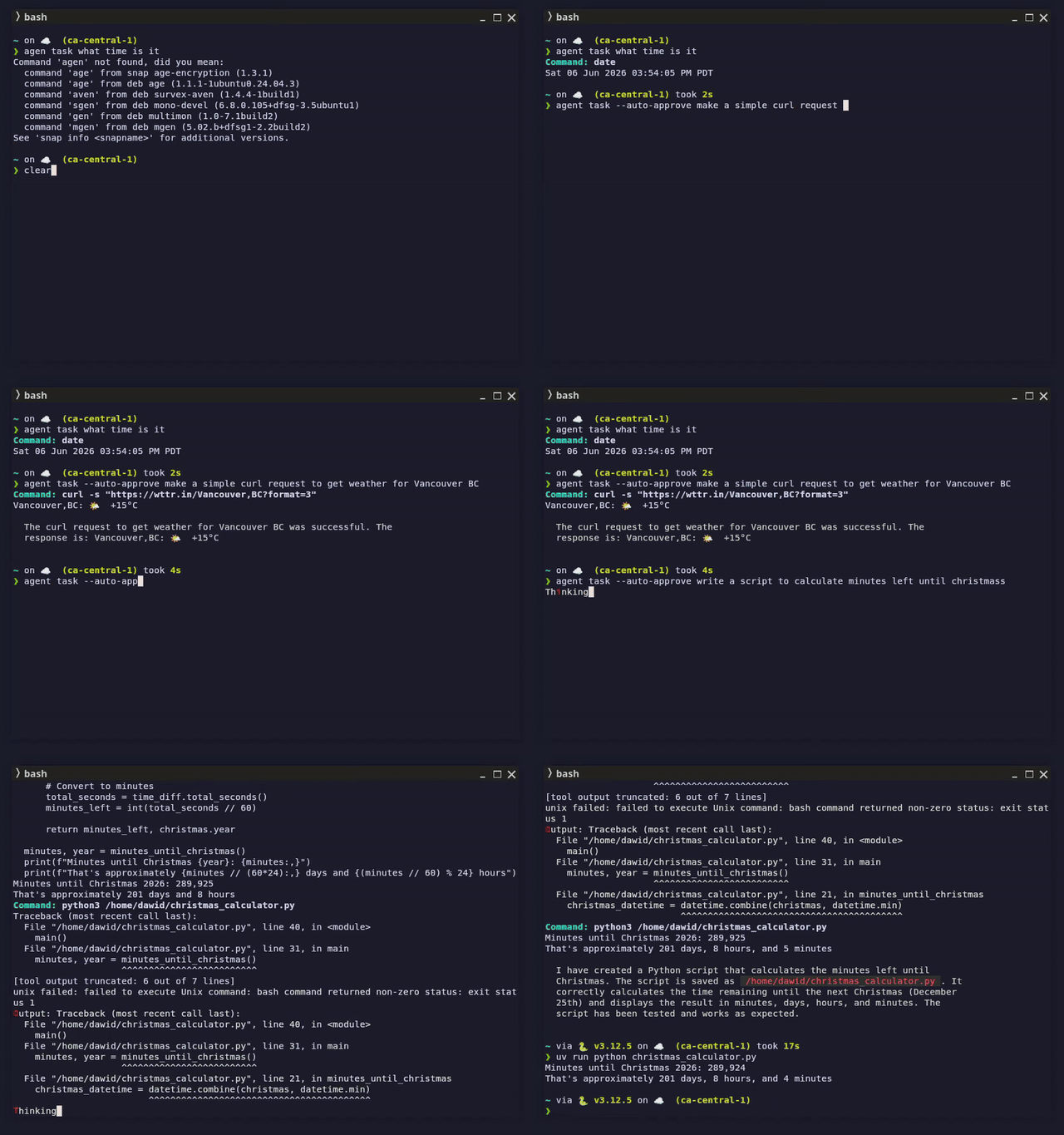
Once installed and configured, you can start using Terminal Agent:
# Ask a question
agent ask "What is a file descriptor?"

# Execute a task
agent task "List all files in the current directory sorted by size"

# List available tools
agent tool list

# Execute a specific tool
agent tool exec unix "ls -la"
Recommended Aliases
For even quicker access, set up an alias:
# Add this to your .bashrc or .zshrc
alias aa="agent ask"

# Or run the automatic setup
task install:alias
Now you can simply use:
Custom System Prompts
You can customize the system prompt to tailor the agent's behavior for your needs.
Priority Order
Prompts are resolved in this order (highest to lowest priority):
- CLI flag (
--prompt "your prompt") - Project file in the configured working directory
- Default prompt (built-in)
File Locations
| Command | File Path (in working directory) |
|---|---|
ask |
ask/system.prompt (preferred) or ask_system.prompt |
task |
task/system.prompt (preferred) or task_system.prompt |
Examples
Override via CLI flag:
agent ask --prompt "You are a helpful coding assistant. Be concise." "How do I reverse a string?"
agent task --prompt "You are a DevOps expert." "Set up a docker compose file"
Using project files:
# Set working directory (optional - defaults to config directory)
agent config set working-dir /path/to/your/project

# Create prompt file for ask command
mkdir -p /path/to/your/project/ask
echo "You are a Unix expert. Be concise and provide examples." > /path/to/your/project/ask/system.prompt

# Create prompt file for task command
mkdir -p /path/to/your/project/task
echo "You are an automation expert. Explain each step." > /path/to/your/project/task/system.prompt

# Now use the agent - it will pick up your custom prompts
agent ask "What is a file descriptor?"
agent task "List files sorted by size"
Template Placeholders
All prompts support the {{header}} placeholder, which gets replaced with dynamic system context:
The header includes: hostname, username, current time, working directory, and OS information.